Why Web Scrapers Return Empty Results on Modern Sites (The JavaScript Rendering Problem)
The page loaded fine. The data is right there on screen. So why is your scraper coming back empty?
If your scraper returns empty rows — or worse, a perfectly structured spreadsheet with no values — the problem almost certainly isn't your code.
It's the page.
Here's the fastest way to confirm it: open the page in Chrome, right-click anywhere, and choose **View Page Source** (`Cmd+U` on Mac, `Ctrl+U` on Windows). Search for a piece of data you're trying to scrape — a product name, a price, a job title.
If it's not there, you're dealing with a dynamic website. The data you see on screen was injected by JavaScript *after* the page loaded. Your scraper read the page before any of that happened.
## Why Modern Sites Work This Way
Ten years ago, most websites embedded all their content directly in the HTML the server delivered. You could scrape them with a simple HTTP request and parse the response.
That's not how most sites are built anymore.
React, Vue, Angular, and similar frameworks deliver a near-empty HTML shell, then have JavaScript run in the browser to fetch and render the actual content. What your scraper receives looks something like this:
Wireless Earbuds Pro
$49.99
Your HTTP scraper captures the first version. The second version never existed at the time of the request.
---
## Three Ways to Fix It
### Option 1: Find the API directly
JavaScript has to get that data from somewhere. Open DevTools → Network tab → filter by **Fetch/XHR**, then reload the page. You'll see the underlying API calls firing.
If the endpoint is unauthenticated and returns clean JSON, you can call it directly. Skip the HTML entirely.
This is the cleanest solution *when it works*. It breaks on sites that use session tokens, rotate endpoints, or obfuscate their API structure. LinkedIn, Amazon, and most sites with serious anti-bot systems make this approach unworkable.
### Option 2: Headless browser (Playwright / Puppeteer)
Launch a real Chromium browser in code, wait for JavaScript to render, then read the DOM.
```pythonfrom playwright.sync_api import sync_playwright
with sync_playwright() as p: browser = p.chromium.launch() page = browser.new_page() page.goto("https://example.com/listings") page.wait_for_selector(".listing-card") cards = page.query_selector_all(".listing-card") # extract fields from each card```
Reliable for most sites. The trade-off: headless browsers have a detectable fingerprint — different TLS signatures, missing browser APIs, navigator properties that don't match real Chrome. Sites like LinkedIn and Zillow specifically block headless traffic.
### Option 3: Scrape inside a real browser session
A Chrome extension runs *inside your actual browser tab* — after JavaScript has fully rendered, with your real cookies and session active. There's no fingerprint mismatch because it isn't headless.
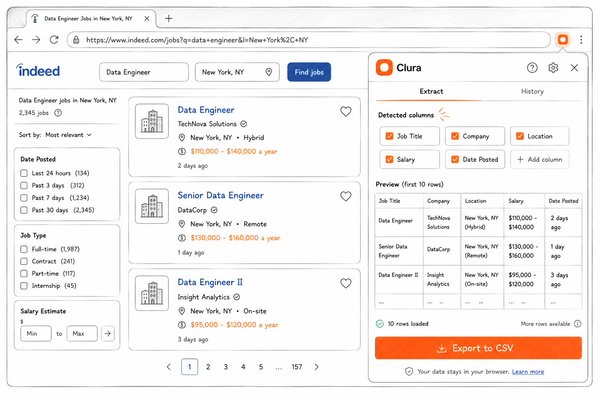
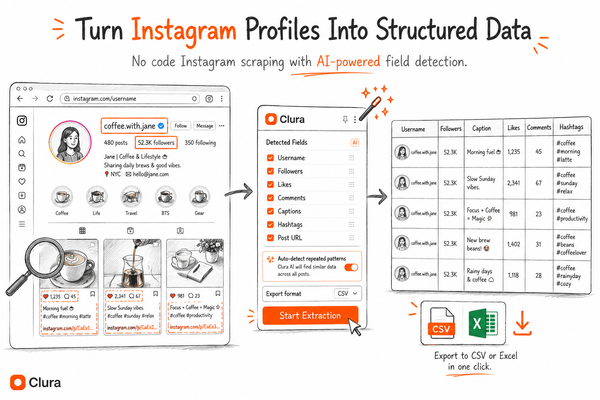
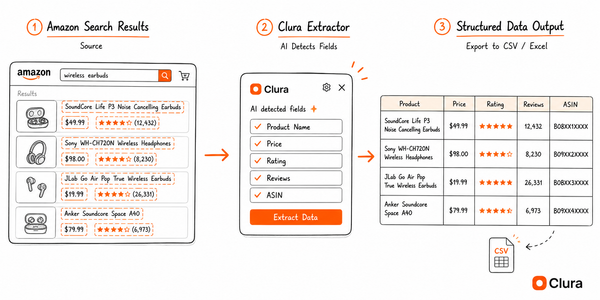
Tools like [Clura](https://clura.ai/blog/scrape-dynamic-websites) take this approach. You navigate to the page, the extension reads the live DOM, detects the repeating data pattern, and exports to CSV. The JavaScript rendering problem doesn't apply because you're operating after it's already been solved.
This matters most for sites that block automation hardest: LinkedIn, Zillow, Amazon, Instagram. A real Chrome session looks identical to normal browsing because it is normal browsing.
---
## Which Approach to Use
| Target Site | Best Approach ||---|---|| Simple site, data in HTML source | HTTP request + parser || Site with accessible public API | Intercept API calls || General JS-heavy site | Playwright / Puppeteer || LinkedIn, Sales Navigator | Browser extension || Amazon, ecommerce with personalization | Browser extension || Zillow / PerimeterX-protected sites | Browser extension || Any login-protected page | Browser extension (uses your session) |
---
## The Principle
Most scraping tools were designed for a web where content lived in the initial HTML response. That web mostly doesn't exist anymore.
The view-page-source test tells you immediately which world you're in. If the data is there, HTTP scraping works. If it isn't, you need to move to the browser layer — whether via Playwright or a Chrome extension.
Once you're operating at the browser layer, the JavaScript rendering problem is gone. You're reading the same DOM the user sees.
---
*Full guide with step-by-step workflows for different site types: [Scraping Dynamic Websites](https://clura.ai/blog/scrape-dynamic-websites)*